How to share resources between data labs?
 ▶
▶Share from a share link
Sharing resources between data labs is easy, it allows one data lab to download a resource generated by another data lab. To do so, follow these steps:
- Open the Resource detail page.
- Click on the menu button
⁝ then Share.
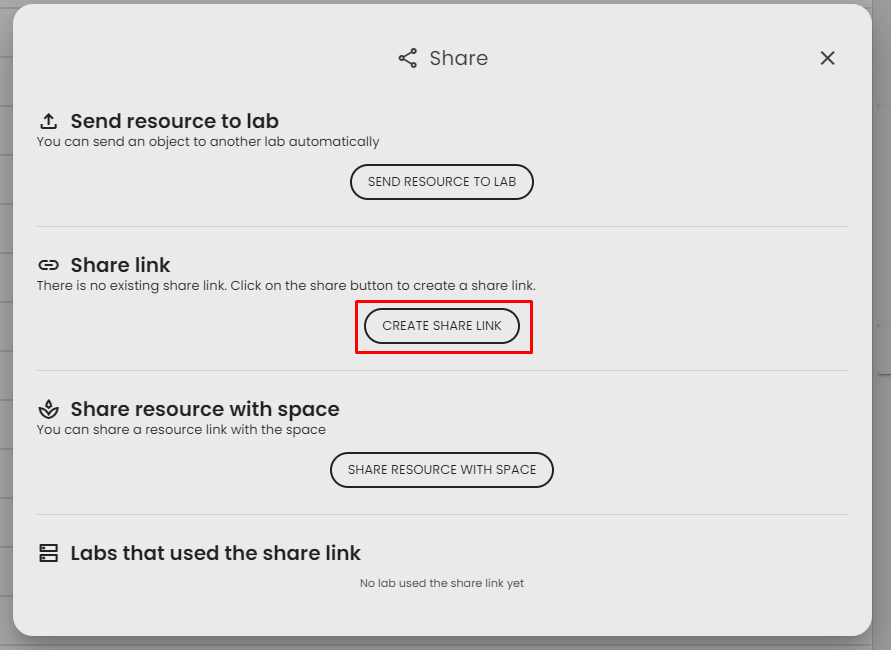
- The share dialog opens. It has several sections: Send resource to lab, Share link, Share resource with space, and Labs that used the share link.
- In the Share link section, if there is no existing share link, click on Create share link.
- Set an expiration date in the Valid until field, or leave it empty for no expiration. Click on Save.
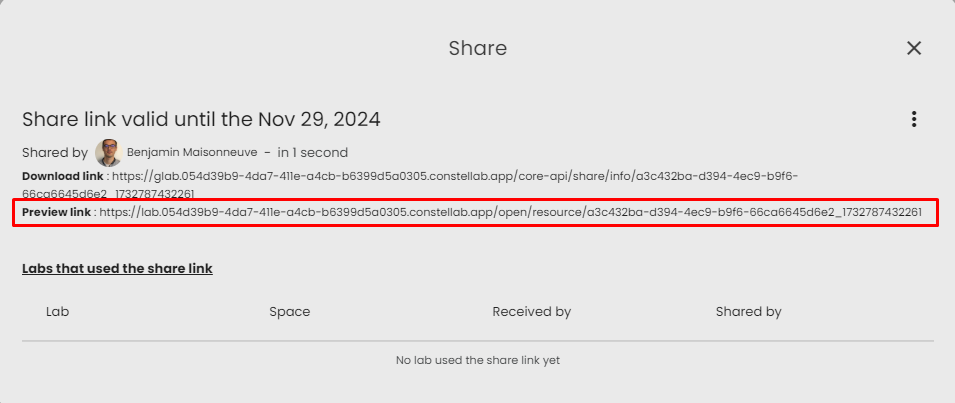
- The share link is generated. Two links are available:— Download link: anyone with this link can download the resource in their lab.— Public link: anyone with this link can view the resource and its default view.Click on a link to copy it. You can also update the expiration date or delete the link from the actions menu
⁝.
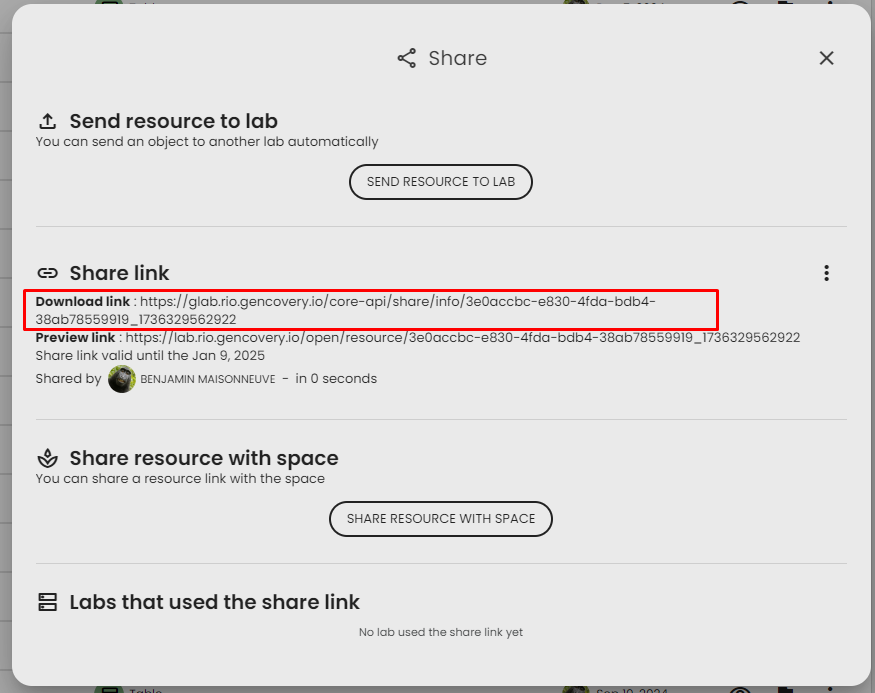
To download the resource in another data lab follow these steps
- Copy the link
- Open the data lab
- Open the
Resources page, and click on Upload from link.
- Paste the link and wait for the download to finish. The resource will now be accessible in the new data lab. For more information, refer to the instructions on "How to upload a resource from an external source?".
- In the first lab you should be able to see that the resource was downloaded by the second data lab.
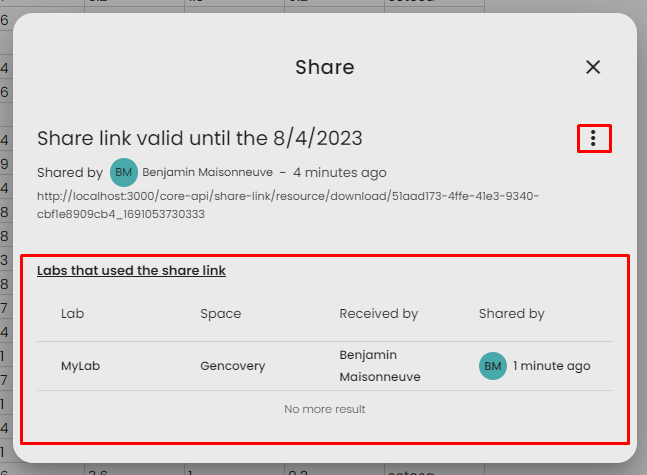
You can monitor all the active share links of your lab in the monitoring section. See Monitoring share links.
Send resources to another lab (e.g. a datahub)
If you frequently send resources to the same lab (e.g., a datahub), you can set up a connection between the two labs to simplify the process.
Share credentials between labs
To create a connexion between the two lab, check this : Connect two data labs
Send a resource
After setting up credentials in both labs, you can send resources:
- Open the Resource detail page.
- Click on the menu button
⁝ then Share. - Click on Send resource to lab.
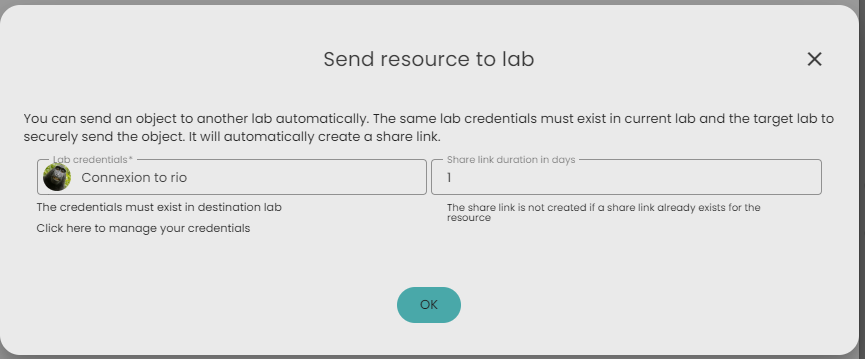
- Choose the credentials to use for the connection.
- A share link will be created automatically (you can leave it as is).
- Click on Ok to start the transfer. A scenario will be created in both the source and destination labs to monitor progress.
Share a resource with space folder
You can also share a resource in your space folders. The resource will be visible in the selected folder in your space, but the data will not be transferred—only a link will be shared. This means the resource will only be accessible if the lab is running. For this reason, it's recommended to share resources from a lab that is always running, such as a datahub.
Steps to share a resource in a space folder:
- Open the Resource detail page.
- Click on the menu button
⁝ then Share. - Click on Share resource with space.
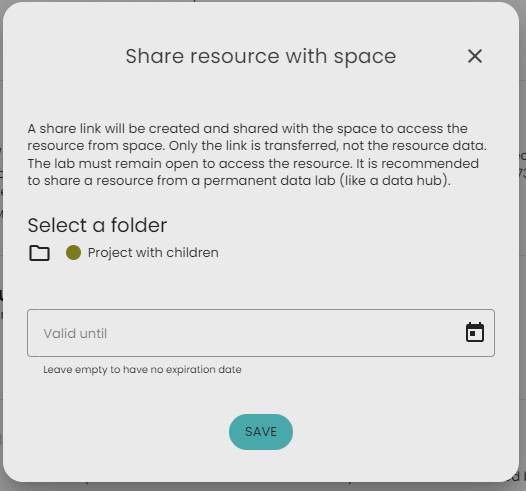
- Choose a folder (it must be accessible from the lab; see: How to connect folders to a data lab?).
- Optionally, set an expiration date in the Valid until field. Leave it empty for no expiration.
- Click on Save.
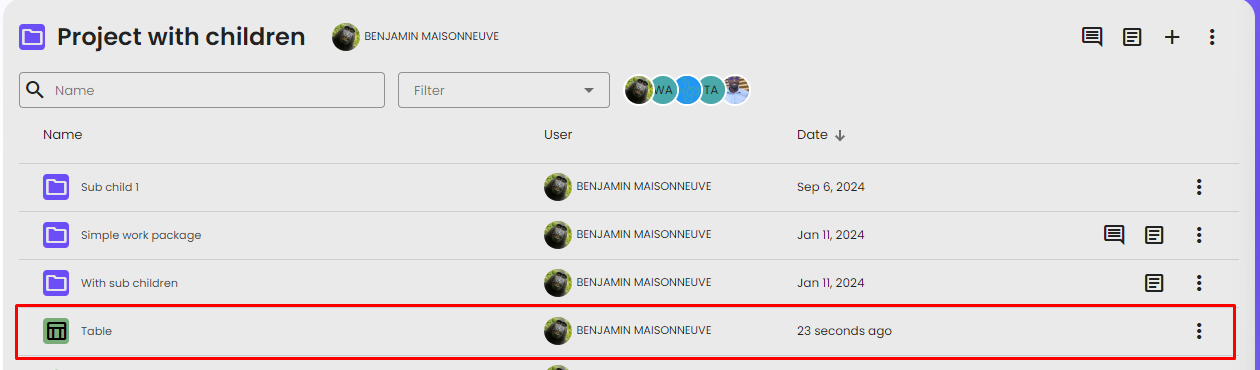
The resource is now available in your space folder, and anyone with access to the folder can view it.
How to expose a resource with an url?
With this feature you can generate a link for a Resource. Anyone with this link will be able to access the Resource and its default view. This can be useful to give anyone access to a Resource (like a dashboard) without giving access to the data lab.
To do this, simply generate a share link as explained above. Then copy the Public link and share it with anyone you want.