How to create a scenario ?
To create a scenario, follow these steps:
- Go to the
Scenarios page
- Click on the
+ on the top right corner.
- Choose a title for your scenario.
- You have the option to select or import a scenario template to pre-configure your scenario. For more details, refer to the scenario template documentation.
- You can attach your new scenario to a folder. Keep in mind that you can modify this parameter later if needed. If you need guidance on how to connect a folder to a data lab, please refer to the Manage your lab page for detailed instructions.
How to add an object to a scenario?
After creating your scenario, you can set it up by adding objects to the playground. To do so, open the Playground of the scenario and click on the Add object button. A dropdown menu appears with the following options:
- Add a process: Add a task or protocol from the installed bricks.
- Add a resource: Add an existing resource from your data lab.
- Add a Community agent: Add an agent from the Constellab Community.
- Add a scenario template: Insert a pre-configured sub-scenario based on an existing scenario template.
- Add an empty protocol: Add a blank protocol block that you can then fill with processes and resources.
How to add a process?
A process is an operational component that can be connected with resources or other processes to execute data analysis. A process can take the form of a standalone block, referred to as a Task, or it can be a more complex structure known as a Protocol, which is made up of a sequence of interconnected Tasks and Resources. To facilitate the organization and access to processes, they are grouped into bricks. A brick serves as a library or collection of processes and associated resources.
To add a process to your scenario:
- Click on the Add object button and choose Add a process from the menu.
- A pop-up appears, presenting a list of all processes accessible within your data lab. This list depends on the bricks previously installed into the lab, as well as their respective versions. The search menu allows you to search for processes either by name, brick, or type of process. You can also access the process documentation by clicking on the i button.
- Select the desired process from the list (e.g.,
Table column scaler).
- You should now see a new box in the playground with the name of the process added to your scenario.
You can also add a process by clicking on a process input/output port and selecting Suggested processes. See the section Interact with process ports for more details.
How to add a resource?
To add a resource to your scenario from the Add object menu:
- Click on the Add object button and then click on Add a resource from the menu.
- This will open a popup where you can view the list of your resources.
- Search and select the desired resource from the list.
You can also add a resource directly connected to a process input port. See the section How to add a resource connected to a process? in the Interact with process ports section for more details.
How to add a Community agent?
To add a Community agent to your scenario:
- Click on the Add object button and choose Add a Community agent from the menu.
- A pop-up appears, presenting a list of available Community agents.
- Select the desired agent from the list. The agent will be added to the playground.
For more details on Community agents, refer to the Community agents documentation.
How to add a scenario template?
To insert a pre-configured sub-scenario based on an existing scenario template:
- Click on the Add object button and choose Add a scenario template from the menu.
- A pop-up appears, presenting a list of available scenario templates.
- Select the desired template. The template's processes and connections will be added to the playground.
For more details, refer to the scenario template documentation.
How to add an empty protocol?
To add a blank protocol block to your scenario, click on the Add object button and choose Add an empty protocol from the menu. An empty protocol block will be added to the playground, which you can then fill with processes and resources.
Interact with process ports
Process ports are represented by small circles. A majority of processes has at least two ports, one port as input and one port as output. However, processes can possess multiple input and output ports. These ports are used to connect the process with resources or other processes to create a pipeline. Please note that from output ports, you can connect multiple objects.
To establish a connection, simply hold down the left mouse button while dragging from one port to another to create a link. To remove a link, right-click on it; a cross will appear, allowing you to delete the link.
When you click on a port, multiple options are available:
- Select a resource (for input port only): This option allows you to connect a resource to the input port.
- Add an output (for output port only): This option adds a special box dedicated to quickly accessing the output of the process. It automatically flags the output resource, making it visible in the Databox for further use.
- Add an interface (for input port, nested protocol only): This option exposes the input port at the parent protocol level, allowing resources to be connected from outside the nested protocol.
- Add an outerface (for output port, nested protocol only): This option exposes the output port at the parent protocol level, allowing the output to be accessed from outside the nested protocol.
- Add a transformer (for output port only): This option adds a transformer connected to the process. A transformer is a specialized Task designed to take one input (typically a Table) and generate one output of the same type. The available transformers will depend on the selected port type.
- Suggested processes: This option opens a pop-up displaying a selection of processes based on the port type. It shows only the processes compatible with that specific port.
- Resource: This option is accessible when the resource is available (usually after the scenario has been run) and enables you to view the resource associated with that port.
How to add a resource connected to a process?
The recommended way to provide data to a process is to connect a resource directly through an input port. This ensures that the resource is compatible with the selected port.
- Click on an input port of a process in your scenario.
- Click on the Select a resource option.
- This option is designed to only show resources compatible with the selected port. It ensures that you choose a resource that can be connected to that specific port.
- Once you select the resource, it will automatically be connected to the input port.
How to configure a process?
To configure a process, simply open the scenario playground and click on the process. This will open the process dashboard.
- In the center section of the dashboard, you can update the configuration of the process according to your requirements.
- If the process is connected to one or more resources, you can access and configure them by clicking on the respective tab on the left side of the dashboard. This allows you to view input while configuring the process.
- Similarly, if the process has generated output resources from a previous successful execution, you can open and configure them by clicking on the corresponding tab on the right side of the dashboard.
- For processes that support dynamic ports, you can add, edit, or remove input/output ports directly from the I/O panels. Click the + button to add a new port, or use the port context menu (⋯) to edit or remove an existing dynamic port. When adding or editing a port, you can configure the resource type, port name, description, and whether the port is optional.
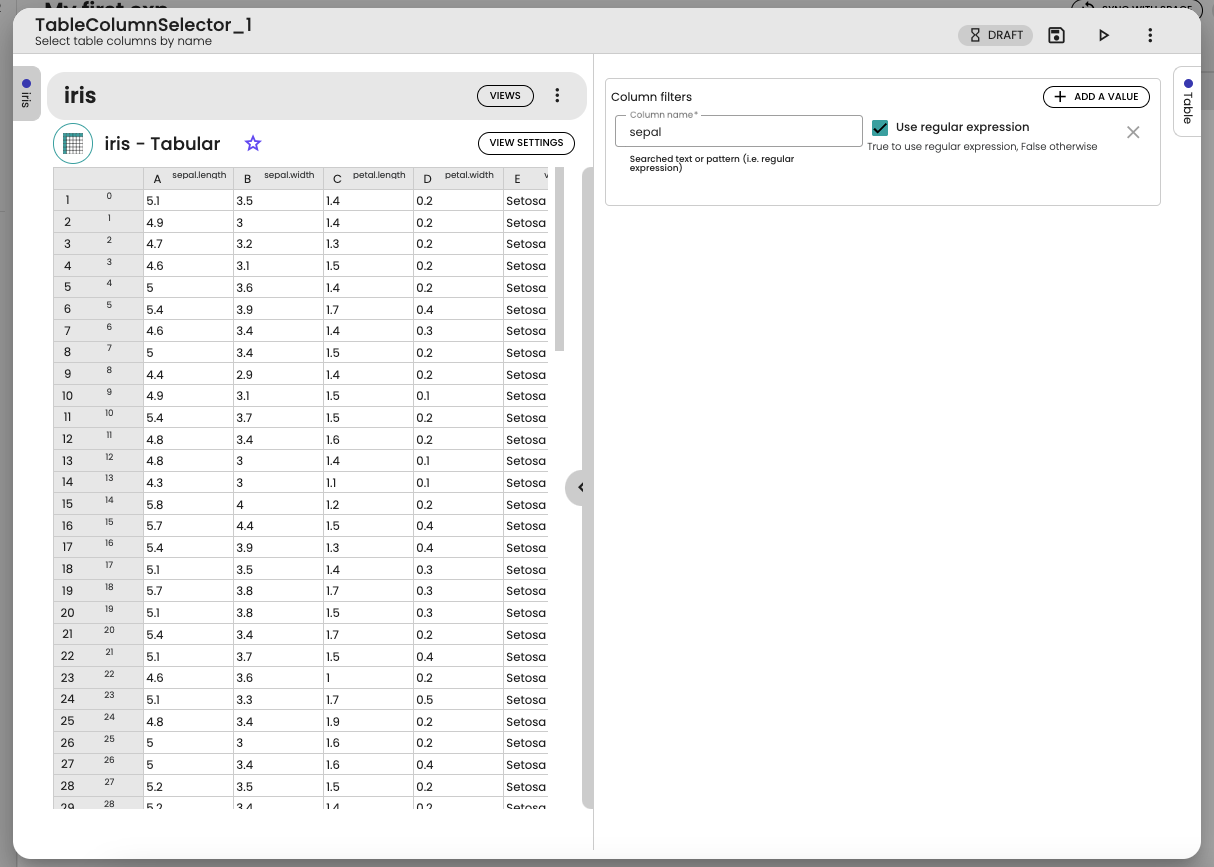
At the top of the dashboard, you will find additional information and actions related to the process:
- The status of the process.
- A Save button allows you to save the configuration changes made to the process.
- A Save and Run button enables you to save the configuration and initiate the execution of the process.
- A queue indicator (hourglass icon) is displayed when the scenario is waiting in the execution queue.
- If the process comes from an external lab, an external lab indicator (cloud icon) is shown. Click it to view external lab details.
- The process icon is clickable — click it to change the process styling (icon and color).
- A menu button provides access to:
- Documentation: View the process type documentation.
- Duplicate task: Create a copy of the task in the scenario.
- Details and messages: View progress details and messages.
- View server logs: Access the server logs for the process.
- Monitoring: View monitoring information for the process.
- Reset process: Reset the process to its draft state.
For agent processes, the menu also includes the following actions:
- Download agent file: Download the agent's code file.
- Share agent to Community: Share the agent to the Constellab Community.
- View pip package list: View the list of pip packages used by the agent.
- Convert code to task (Python agents only): Convert the agent code into a reusable task.
How to delete an object or a connection?
To delete a process or a resource from your scenario, right-click on the object in the playground and click on the X button to remove it.
To delete a connection between two ports, right-click on the link; a cross will appear, allowing you to delete it.
How to change the style of a process from my scenario?
To change the style of a process in your scenario, follow these steps:
Open the "Edit process style" dialog
- Open your scenario.
- Click on the process you want to modify.
- When the process panel opens, click on the process icon.
- The "Edit Process Style" dialog should open.
Change the icon
To change the icon of a process:
- From the Edit Process Style dialog, click on the icon button.
- A dialog to select an icon will open, where you have two options:Reference a material icon name from the Google Fonts Material Icons Library.Select a Community Icon from the list of available Community Icons.
- After selecting an icon, you will be redirected back to the Edit Process Style dialog with the icon changed, where you can see the preview.
- Click on the Save button to save the new process style.
Change the background color
To change the background color of a process:
- Use the color picker in the Edit Process Style dialog.
- This will dynamically change the process style preview's background color.
- Click on the Save button to save the new process style.
How to configure a process with a dynamic config?
How to create a new parameter in the dynamic config of a process?
- Open your Scenario.
- Go to the task that includes the dynamic config.
- Click on the ⚙️Edit Parameters button. A configuration dialog will open displaying a table of parameters with their information.
- In the configuration dialog, click on the ➕Add a Parameter button.
- A form will open where you'll need to fill out details about the parameter you want to create.
- Select the type of parameter from options like str, bool, float, JSON, etc. Note that the fields of the creation form are dynamic and depend on the parameter type you select.
- Fill in the mandatory fields: Type and Name.
- (Optional) Fill in additional fields like Optional, Short Description, and Default Value.
- Click Save to add the new parameter.
How to edit a parameter in the dynamic config?
- Open your Scenario.
- Go to the task that includes the dynamic config.
- Click on the ⚙️Edit Parameters button. A configuration dialog will open displaying a table of parameters with their information.
- From the parameters table in the configuration dialog, click on the ✏️Edit button next to the parameter you wish to modify.
- The same edition dialog used for creation will open, but it will be pre-filled with the current parameter details.
- Make the necessary changes and click Save to update the parameter.
How to delete a parameter in the dynamic config?
- Open your Scenario.
- Go to the task that includes the dynamic config.
- Click on the ⚙️Edit Parameters button. A configuration dialog will open displaying a table of parameters with their information.
- Locate the parameter you wish to delete in the parameters table.
- Click on the 🗑️Delete button for that parameter's row.
- Confirm the deletion to remove the parameter from the dynamic config.