Scenario lifecycle
A scenario goes through several statuses during its lifetime. Understanding these statuses helps you know what actions are available at each stage.
How to run a scenario?
To run a scenario, click the Run button (play icon) in the scenario toolbar. The button is available when the scenario is in Draft, Success, Error, or Partially run status.
Once initiated, the scenario is added to the execution queue (status In queue). It will start running once all previous scenarios in the queue have finished. You can refer to the section How to check the scenario queue? below for more information.
The scenario status will automatically change to Running, indicating its active execution. Once the execution is completed, the status will be Success if everything went well, or Error if at least one process did not finish.
In the playground, you can track the progress of the scenario and view intermediate results during execution. You can also access process messages, logs, and monitoring features from the action menu (three-dot button) under Monitoring.
Re-running a scenario
If you run a scenario that was already executed, only the processes with Draft or Error status will be re-executed. Processes with a Success status will not run again.
This means you can fix a failed process configuration and re-run the scenario without losing previous successful results. If you need to re-execute all processes from scratch, you must first reset the scenario (see How to reset a scenario?).
How to run a scenario in an external lab?
You can send a scenario to another data lab for execution. This is useful when you want to run a scenario on a lab with different resources or computing power.
- Open the action menu (three-dot button) in the scenario header.
- Click Share, then select Send to another lab.
- Configure the export options and confirm.
Once sent, the scenario will be created in the target lab and can be executed there. The status in your lab will reflect the external execution state (e.g. Running in external lab, In queue in external lab).
If the scenario was imported from another lab, you can also update it from the external lab by clicking Update from external lab in the action menu.
How to run a process?
You can run a single process without running the entire scenario. This is useful for testing or re-executing a specific step.
- Click on the process in the playground to open its detail panel.
- Configure the process if needed.
- Click the Run button (play icon) at the top of the process panel.
The process configuration will be saved automatically before execution starts. The process will then move to Running status.
How to reset a scenario?
Resetting a scenario returns all its processes to Draft status and clears all generated results. This allows you to re-run the entire scenario from scratch.
- Open the action menu (three-dot button) in the scenario header.
- Click Reset scenario.
- If resources generated by this scenario are used elsewhere, an impact warning will be displayed. Confirm the reset.
The reset option is available when the scenario has been executed (status Success, Error, or Partially run) or is currently running.
How to reset a process?
You can reset a single process instead of the entire scenario. This returns only the selected process to Draft status and clears its outputs.
- Click on the process in the playground to open its detail panel.
- Open the process action menu (three-dot button) in the process panel.
- Click Reset process and confirm.
This option is only available for processes that have been executed at least once. Like the scenario reset, an impact check is performed before the reset is applied.
How to stop a scenario?
If you need to interrupt a running scenario, click the Stop button (stop icon) in the scenario toolbar. This button is only available while the scenario is actively running.
Stopping a scenario will mark the currently running process as Error. The intermediate results produced before the stop will still be available, and you can resume the scenario later by re-running it — only the stopped and pending processes will be re-executed.
If the scenario is in the queue (status In queue) but has not started running yet, you can remove it from the queue instead. Open the action menu and click Remove from queue.
How does the scenario execution queue work?
When you start a scenario, it is added to the lab's execution queue. Scenarios in the queue are executed one at a time, in the order they were submitted.
While a scenario is waiting in the queue, its status is In queue. Once the previous scenario finishes, the next one in the queue automatically begins execution. This ensures that lab resources are not overloaded by running multiple scenarios simultaneously.
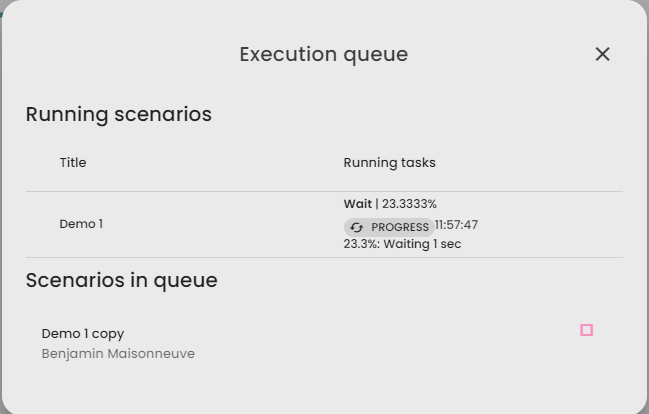
The queue also displays the last progress message of the currently running scenario, which can be useful for tracking overall lab activity.
How to check the scenario queue ?
To check the list of running scenarios and scenarios in the queue, follow these steps:
- Click on the
Settings menu.
- Select
Execution Queue from the options.
- The
Execution Queue page will display the list of running scenarios and scenarios in the queue.
In the list, you can see the last message of the running scenario, which can be useful for tracking its progress.
To remove an scenario from the queue, locate the scenario in the list and click on the Stop button associated with it